
JavaScript Basics
/ 30 min read
Table of Contents
Why Study JavaScript?
JavaScript is one of the 3 languages all web developers must learn:
-
HTML to define the content of web pages
-
CSS to specify the layout of web pages
-
JavaScript to program the behavior of web pages
Today JavaScript is also used for:
- Frontend (React, Vue, Solid, Astro)
- Backend (Node.js, Deno, Bun)
- Mobile apps (React Native, Ionic)
- Desktop apps (Electron, Tauri)
- Game development, AI in browser
Commonly Asked Questions
How do I get JavaScript? Where can I download JavaScript? Is JavaScript Free? You don’t have to get or download JavaScript.
JavaScript is already running in your browser on your computer, on your tablet, and on your smart-phone.
JavaScript is free to use for everyone.
JavaScript
JavaScript is the programming language of the web.
It can calculate, manipulate and validate data. It can update and change both HTML and CSS.
- JavaScript Can Change HTML Content
document.getElementById("demo").innerHTML = "Hello JavaScript";- JavaScript Can Change HTML Attribute Values
<html><body>
<h2>What Can JavaScript Do?</h2>
<p>JavaScript can change HTML attribute values.</p>
<p>In this case JavaScript changes the value of the src (source) attribute of an image.</p>
<button onclick="document.getElementById('myImage').src='pic_bulbon.gif'">Turn on the light</button>
<img id="myImage" src="pic_bulboff.gif" style="width:100px">
<button onclick="document.getElementById('myImage').src='pic_bulboff.gif'">Turn off the light</button>
</body></html>- JavaScript Can Change HTML Styles (CSS)
document.getElementById("demo").style.fontSize = "35px";ECMA6(ES6) Features(2015):
- Let & Const
- Arrow Function
- Template Literals(Backticks `)
- Spread Operator
- Default Parameters in function
- Modules(import/export)
- Promises(Foundation of modern async)
and many more..
Where to write JavaScript code?
1 .In HTML, JavaScript code is inserted between <script> and </script> tags.
Scripts can be placed in the <body>, or in the <head> section of an HTML page, or in both.
- External JavaScript
Scripts can also be placed in external files,
external.js:
function myFunction() { document.getElementById("demo").innerHTML = "Paragraph changed.";}importing in script tag:
<script src="external.js"></script>JavaScript Functions and Events
A JavaScript function is a block of JavaScript code, that can be executed when “called” for.
For example, a function can be called when an event occurs, like when the user clicks a button.
In this example, a JavaScript function is placed in the section of an HTML page.
The function is invoked (called) when a button is clicked:
<!DOCTYPE html><html><head><script>function myFunction() {  document.getElementById("demo").innerHTML = "Paragraph changed.";}</script></head><body><h2>Demo JavaScript in Head</h2>
<p id="demo">A Paragraph</p><button type="button" onclick="myFunction()">Try it</button>
</body></html>
JavaScript Output
JavaScript can “display” data in different ways:
- Writing into an HTML element, using innerHTML or innerText.
innerText property to change the inner text of the HTML element and innerHTML property to change the HTML content of the HTML element:
<script>document.getElementById("demo").innerHTML = "<h2>Hello World</h2>";</script>||<script>document.getElementById("demo").innerText = "Hello World";</script>- Writing into the HTML output using document.write().
<script>document.write("hi");</script>- Writing into an alert box, using window.alert().
<script>window.alert("hi");</script>- Writing into the browser console, using console.log().
you can call the console.log() method in the browser to display data:
console.log("hi")JavaScript Syntax
// How to Declare variables:let x = 5;let y = "string";let z = true;let s = undefined;
// All of the above are statements// I am a Comment. I do Nothing
JavaScript Statements
A computer program is a list of “instructions” to be “executed” by a computer.
These programming instructions are called statements.
Most JavaScript programs contain many statements.
The statements are executed, one by one, in the same order as they are written.
JavaScript Variables
Variables are containers for storing data values.
Variables must be identified with unique names.
// Define x as a variablelet x;
// Assign the value 6 to xx = 6;
Variables = Data Containers JavaScript variables are containers for data.
JavaScript variables can be declared in 4 ways:
Modern JavaScript: Using let, Using const
Older JavaScript: Using var (Not Recommended), Automatically (Not Recommended)
JavaScript Keywords
JavaScript keywords are used to defines actions to be performed.
The let and const keywords create variables:
let x = 5;
const fname = "John";
note:JavaScript keywords are case-sensitive.
| Keyword | Description |
|---|---|
| var | Declares a variable |
| let | Declares a block-scoped variable |
| const | Declares a block-scoped constant |
| if | Marks a block of statements to be executed on a condition |
| switch | Marks a block of statements to be executed in different cases |
| for | Marks a block of statements to be executed in a loop |
| function | Declares a function |
| return | Exits a function |
| try | Implements error handling to a block of statements |
JavaScript and Camel Case
Historically, programmers have used different ways of joining multiple words into one variable name:
Hyphens:
first-name, last-name, master-card, inter-city.
Hyphens are not allowed in JavaScript. They are reserved for subtractions.
Underscore:
first_name, last_name, master_card, inter_city.
Upper Camel Case (Pascal Case):
FirstName, LastName, MasterCard, InterCity.
Lower Camel Case:
firstName, lastName, masterCard, interCity.
JavaScript programmers tend to use lower camel case.
JavaScript Datatypes
| Type | Description |
|---|---|
| String | A text of characters enclosed inquotes |
| Number | A number representing a mathematical value |
| Bigint | A number representing a large integer |
| Boolean | A data type representing true or false |
| Object | A collection of key-value pairs of data |
| Undefined | A primitive variable with no assigned value |
| Null | primitive value representing object absence |
| Symbol | A unique and primitive identifier |
// Stringlet color = "Yellow";let lastName = "Johnson";
// Numberlet length = 16;let weight = 7.5;
// BigIntlet x = 1234567890123456789012345n;let y = BigInt(1234567890123456789012345)
// Booleanlet x = true;let y = false;
// Objectconst person = {firstName:"John", lastName:"Doe"};
// Array objectconst cars = ["Saab", "Volvo", "BMW"];
// Date objectconst date = new Date("2022-03-25");
// Undefinedlet x;let y;
// Nulllet x = null;let y = null;
// Symbolconst x = Symbol();const y = Symbol();
JavaScript Operators
Operators are for Mathematical and Logical Computations
The Assignment Operator = assigns values
The Addition Operator + adds values
The Multiplication Operator * multiplies values
The Comparison Operator > compares values- Arithmetic Operators
| Operator | Name | Example | Result |
|---|---|---|---|
+ | Addition | 5 + 3 | 8 |
- | Subtraction | 10 - 4 | 6 |
* | Multiplication | 4 * 3 | 12 |
/ | Division | 10 / 2 | 5 |
% | Modulus (Remainder) | 10 % 3 | 1 |
** | Exponentiation | 2 ** 3 | 8 |
++ | Increment | let x = 5; x++ | 6 |
-- | Decrement | let x = 5; x-- | 4 |
- Assignment Operators
| Operator | Example | Same as |
|---|---|---|
= | x = 10 | x = 10 |
+= | x += 5 | x = x + 5 |
-= | x -= 3 | x = x - 3 |
*= | x *= 2 | x = x * 2 |
/= | x /= 4 | x = x / 4 |
%= | x %= 3 | x = x % 3 |
**= | x **= 2 | x = x ** 2 |
- Comparison Operators
| Operator | Name | Example | Result |
|---|---|---|---|
== | Loose equality | 5 == "5" | true |
=== | Strict equality | 5 === "5" | false |
!= | Loose not equal | 5 != "5" | false |
!== | Strict not equal | 5 !== "5" | true |
> | Greater than | 10 > 7 | true |
< | Less than | 3 < 8 | true |
>= | Greater than or equal | 5 >= 5 | true |
<= | Less than or equal | 4 <= 2 | false |
- Logical Operators
| Operator | Name | Example | Result |
|---|---|---|---|
&& | AND | true && false | false |
|| | OR | false || true | true |
! | NOT | !true | false |
?? | Nullish | null ?? "default" | "default" |
Short-circuit examples:
let name = "" || "Guest"; // "Guest"let count = 0 ?? 100; // 0 (?? only for null/undefined)JavaScript Conditionals
Conditional Statements allow us to perform different actions for different conditions.
Conditional statements run different code depending on true or false conditions.
Conditional statements include:
- if
if (condition) { // code to execute if the condition is true}- if…else
if (condition) { // code to execute if the condition is true} else { // code to execute if the condition is false}- if…else if…else
if (condition1) { // code to execute if condition1 is true} else if (condition2) { // code to execute if the condition1 is false and condition2 is true} else { // code to execute if the condition1 is false and condition2 is false}- switch
switch(expression) { case x: // code block break; case y: // code block break; default: // code block}- ternary (? :)
condition ? expression1 : expression2JavaScript Loops
Loops can execute a block of code a number of times.
- For Loop
The for statement creates a loop with 3 optional expressions:
Syntax:
for (exp 1; exp 2; exp 3) { // code block to be executed}exp 1 is executed (one time) before the execution of the code block.
exp 2 defines the condition for executing the code block.
exp 3 is executed (every time) after the code block has been executed.
Example:
for (let i = 0; i < 5; i++) { text += "The number is " + i + "<br>";}- While Loops
While loops execute a block of code as long as a specified condition is true.
JavaScript have two types of while loops:
a. The while loop
The while loop loops through a block of code as long as a specified condition is true.
Syntax:
while (condition) { // code block to be executed}Example:
while (i < 10) { text += "The number is " + i; i++;}b. The do while loop
The do while loop is a variant of the while loop.
This loop will execute the code block once, before checking if the condition is true, then it will repeat the loop as long as the condition is true.
syntax:
do { // code block to be executed}while (condition);Example:
do { text += "The number is " + i; i++;}while (i < 10);- Break
The break statement “jumps out” of loops and switches.
The break statement terminates the execution of a loop or a switch statement.
No more loop iterations are executed.
Example:
for (let i = 0; i < 10; i++) { if (i === 3) { break; } text += "The number is " + i + "<br>";}- JavaScript Continue
The continue statement skips the current iteration in a loop.
The remaining code in the iteration is skipped and processing moves to the next iteration.
Example:
Skip the value of 3:
for (let i = 1; i < 10; i++) {  if (i === 3) { continue; }  text += "The number is " + i + "<br>";}
JavaScript Strings
Strings are for storing text
Strings are written with quotes
Example:
let carName1 = "Volvo XC60"; // Double quoteslet carName2 = 'Volvo XC60'; // Single quotesString Templates
Template Strings use back-ticks (“) rather than the quotes ("") to define a string:
let text = `Hello World!`;Interpolation:
let firstName = "John";let lastName = "Doe";
let text = `Welcome ${firstName}, ${lastName}!`;
result: John Doe
String Methods
- JavaScript String Length:
The length property returns the length of a string:
let text = "Apple";let length = text.length;
result:5- Extracting String Characters:
a. The at(position) Method:
const name = "W3Schools";let letter = name.at(2);
result: S
b. The charAt(position) Method:
The charAt() method returns the character at a specified index (position) in a string:
let text = "HELLO WORLD";let char = text.charAt(0);
result: H
c. The charCodeAt(position) Method:
The charCodeAt() method returns the code of the character at a specified index in a string:
The method returns a UTF-16 code (an integer between 0 and 65535).
let text = "HELLO WORLD";let char = text.charCodeAt(0);
result: 72
d. codePointAt() Method:
Get code point value at the first position in a string:
let text = "HELLO WORLD";let code = text.codePointAt(0);
result: 72- JavaScript String concat():
concat() joins two or more strings:
let text1 = "Hello";let text2 = "World";let text3 = text1.concat(" ", text2);
result: "Hello World"- Extracting String Parts:
There are 3 methods for extracting a part of a string:
a. slice(start, end)
slice() extracts a part of a string and returns the extracted part in a new string.
The method takes 2 parameters: start position, and end position (end not included).
let text = "Apple, Banana, Kiwi";let part = text.slice(7, 13);
result:Banana
b. substring(start, end)
substring() is similar to slice().
The difference is that start and end values less than 0 are treated as 0 in substring().
let str = "Apple, Banana, Kiwi";let part = str.substring(7, 13);
result:Banana
c. substr(start, length)
substr() is similar to slice().
The difference is that the second parameter specifies the length of the extracted part.
let str = "Apple, Banana, Kiwi";let part = str.substr(7, 6);
result:Banana- Converting to Upper and Lower Case:
A string is converted to upper case with toUpperCase():
A string is converted to lower case with toLowerCase():
let text1 = "Hello World!";let text2 = text1.toUpperCase();let text3 = text1.toLowerCase();- JavaScript String repeat(): The repeat() method returns a string with a number of copies of a string.
The repeat() method returns a new string.
The repeat() method does not change the original string.
let text = "Hello world!";let result = text.repeat(2);- JavaScript String split():
A string can be converted to an array with the split() method:
text.split(",") // Split on commastext.split(" ") // Split on spacestext.split("|") // Split on pipeJavaScript Numbers
JavaScript has only one type of number.
Numbers can be written with or without decimals.
let x = 3.14; // A number with decimalslet y = 3; // A number without decimalsExtra large or extra small numbers can be written with scientific (exponent) notation:
let x = 123e5; // 12300000let y = 123e-5; // 0.00123NaN - Not a Number:
NaN is a JavaScript reserved word indicating that a number is not a legal number.
Trying to do arithmetic with a non-numeric string will result in NaN (Not a Number):
let x = 100 / "Apple";
result: NaN
Number Methods
- The toString() Method:
The toString() method returns a number as a string.
All number methods can be used on any type of numbers (literals, variables, or expressions):
let x = 123;x.toString();(123).toString();(100 + 23).toString();
result:The toString() method converts a number to a string.123123123- The toExponential() Method:
toExponential() returns a string, with a number rounded and written using exponential notation.
A parameter defines the number of characters behind the decimal point:
let x = 9.656;x.toExponential(2);x.toExponential(4);x.toExponential(6);
result:9.656e+09.66e+09.6560e+09.656000e+0- The toFixed() Method:
toFixed() returns a string, with the number written with a specified number of decimals:
let x = 9.656;x.toFixed(0);x.toFixed(2);x.toFixed(4);x.toFixed(6);
result:109.669.65609.656000- The toPrecision() Method
toPrecision() returns a string, with a number written with a specified length:
let x = 9.656;x.toPrecision();x.toPrecision(2);x.toPrecision(4);x.toPrecision(6);
result:9.6569.79.6569.65600- The valueOf() Method:
valueOf() returns a number as a number.
let x = 123;x.valueOf();(123).valueOf();(100 + 23).valueOf();

result:123123123
JavaScript Function
Functions are reusable code blocks designed to perform a particular task.
Functions are executed when they are called or invoked.
Functions are fundamental in all programming.
Q. Why Functions?
Reuse code (write once, run many times)Organize code into smaller partsMake code easier to read and maintainQ. What Does a Function Look Like?
A function can be created with the function keyword, a name, and parentheses:
function sayHello() { return "Hello World";}Q. How does function works?
The most useful functions work like this:
Input - some parameters go in
Function - some work is done
Output - some value is returned
In the next three chapters, you will learn more about input and return values.
Functions Run When You Call Them:
function sayHello() {  return "Hello World";}
let message = sayHello();- Function Expression
A function expression is a function assigned to a variable.
const x = function (a, b) {return a * b};- Arrow Function (ES6+)
Arrow Functions allow a shorter syntax for function expressions.
You can skip the function keyword, the return keyword, and the curly brackets:
const add = (a, b) => a + b;
const square = x => x * x;
const add = (a, b) => { return a + b;};- Parameters & Arguments
Parameters allow you to pass (send) values to a function.
Arguments are the real values passed to, and received by the function.
function multiply(a, b) { //parameters  return a * b;}
let result = multiply(4, 5); //arguments- Return Statements
A function can return a value back to the code that called it.
The return statement is used to send a value out of a function.
Without return → function returns undefined
function divide(a, b) { if (b === 0) return "Cannot divide by zero"; // early return return a / b;}- This
In JavaScript, the this keyword refers to an object.
The this keyword refers to different objects depending on how it is used:
a. Object Method (most common correct use)x
const user = {  name: "User",  greet() {    console.log(`Hi, I'm ${this.name}`);  }};
user.greet();          // Hi, I'm User     ✅ this = userconst sayHi = user.greet;   // just reference, no object anymoresayHi();                    // Hi, I'm undefined   ❌ this = window / global
b. Arrow Function – Does NOT have its own this
const user = {  name: "User",  greet: () => {    console.log(`Hi, I'm ${this.name}`);   // this = window / outer scope  },  greetProper() {    console.log(`Hi, I'm ${this.name}`);   // this = user  }};
user.greet();       // Hi, I'm undefined    ❌user.greetProper(); // Hi, I'm User       ✅
JavaScript Objects
An Object is a variable that can hold many variables.
Objects are collections of key-value pairs, where each key (known as property names) has a value.
const car = {type:"Fiat", model:"500", color:"white"};Object Methods
Object methods are actions that can be performed on objects.
Object methods are function definitions stored as property values:
const person = { firstName: "John", lastName: "Doe", id: 5566, fullName: function() { return this.firstName + " " + this.lastName; }};In the example above, this refers to the person object:
this.firstName means the firstName property of person.
this.lastName means the lastName property of person.
- Using Object.values():
Object.values() creates an array from the property values:
// Create an Objectconst person = {  name: "John",  age: 30,  city: "New York"};
// Create an Arrayconst myArray = Object.values(person);
// Stringify the Arraylet text = myArray.toString();
result:Object.values() returns an array of values from an object:
John,30,New York- Using Object.entries()
Object.entries() makes it simple to use objects in loops:
const fruits = {Bananas:300, Oranges:200, Apples:500};
let text = "";for (let [fruit, value] of Object.entries(fruits)) { text += fruit + ": " + value + "<br>";}result:Bananas: 300Oranges: 200Apples: 500- Using JSON.stringify()
JavaScript objects can be converted to a string with JSON method JSON.stringify().
JSON.stringify() is included in JavaScript and supported in all browsers.
const person = {  name: "John",  age: 30,  city: "New York"};
// Stringify Objectlet text = JSON.stringify(person);

result:{"name":"John","age":30,"city":"New York"}
JavaScript IIFE
An Immediately Invoked Function Expression (IIFE) is a function that runs immediately after it is defined and JavaScript engine reads it.
It is executed immediately, without being called.
(function () { console.log("Hello World");})();Q. Why Use an IIFE?
IIFEs were commonly used to avoid creating global variables.
Everything inside an IIFE is private to that function.
(function () {  let x = 10;  console.log(x);})();
// x is not accessible here
IIFE in Modern JavaScript
Today, JavaScript modules often replace the need for IIFEs.
Modules have their own scope by default.
<script type="module">let x = 10;</script>The variable x is scoped to the module and not global.
Scope
Scope determines the accessibility (visibility) of variables.
JavaScript variables have 3 types of scope:
- Global scope
Variables declared Globally (outside any block or function) have Global Scope.
Variables declared with var, let and const are quite similar when declared outside a block.
var x = 1;    // Global scope
let y = 2;    // Global scope
const z = 3;  // Global scope
function myFunction() {// value of x, y, z can be used here}- Function scope
ariables defined inside a function are not accessible (visible) from outside the function.
Variables declared with var, let and const are quite similar when declared inside a function.
// code here can NOT use carName
function myFunction() {  let carName = "Volvo";  // code here CAN use carName}
// code here can NOT use carName- Block scope
Before ES6, JavaScript variables could only have Global Scope or Function Scope.
ES6 introduced two important new JavaScript keywords: let and const.
These two keywords provide Block Scope in JavaScript.
Variables declared with let and const inside a code block are “block-scoped,” meaning they are only accessible within that block.
This helps prevent unintended variable overwrites and promotes better code organization
{ let x = 2;}// x can NOT be used hereHoisting
Hoisting is a JavaScript behavior where declarations (not initializations/assignments) are moved to the top of their containing scope during the compilation phase — before the code actually executes line by line.
| Declaration Type | Hoisted? | Initialized with what? | Can use before declaration? | Scope where hoisted to |
|---|---|---|---|---|
var | Yes | undefined | Yes (value = undefined) | Function or global |
let / const | Yes | Not initialized (dead zone) | No → ReferenceError (TDZ) | Block |
function (declaration) | Yes | Full function (can call) | Yes (full function available) | Function or global |
class | Yes | Not initialized (dead zone) | No → ReferenceError (TDZ) | Block |
- JavaScript Declarations are Hoisted
In JavaScript, a variable can be declared after it has been used.
In other words; a variable can be used before it has been declared.
Example 1 gives the same result as Example 2:
Example 1:
x = 5; // Assign 5 to x
elem = document.getElementById("demo"); // Find an elementelem.innerHTML = x;                     // Display x in the element
var x; // Declare x
Example 2:
var x; // Declare xx = 5; // Assign 5 to x
elem = document.getElementById("demo"); // Find an elementelem.innerHTML = x;- JavaScript Initializations are Not Hoisted
JavaScript only hoists declarations, not initializations.
Example 1 does not give the same result as Example 2:
Example 1:
var x = 5; // Initialize xvar y = 7; // Initialize y
elem = document.getElementById("demo"); // Find an elementelem.innerHTML = x + " " + y;           // Display x and y
result : 5 7
Example 2:
var x = 5; // Initialize x
elem = document.getElementById("demo"); // Find an elementelem.innerHTML = x + " " + y;           // Display x and y
var y = 7; // Initialize y
result: 5 undefined
JavaScript Date
JavaScript Date are the objects that is created by using keyword new Date().
Methods of Creating Date Objects:
Date objects are created with the new Date() constructor.
There are 9 ways to create a new date object:
new Date()

new Date(date string)

new Date(year, month)new Date(year, month, day)new Date(year, month, day, hours)new Date(year, month, day, hours, minutes)new Date(year, month, day, hours, minutes, seconds)new Date(year, month, day, hours, minutes, seconds, milliseconds)
// Examples for above:
// new Date()const now = new Date();
// new Date(date String)new Date("2025-03-14")                    // date only → time 00:00:00 localnew Date("2025-03-14T15:30:00")           // date + time (local timezone)new Date("2025-03-14T15:30:00Z")          // UTC / Zulu timenew Date("2025-03-14T15:30:00+05:45")     // with offsetnew Date("March 14, 2025 15:30:00")       // English month name (very locale-dependent)new Date("14 Mar 2025 15:30:45 GMT")      // RFC 2822 style

//othersnew Date(2025, 2)               // → 2025-03-01 00:00:00 localnew Date(2025, 2, 14)           // → 2025-03-14 00:00:00 localnew Date(2025, 2, 14, 15)       // → 2025-03-14 15:00:00 localnew Date(2025, 2, 14, 15, 30)new Date(2025, 2, 14, 15, 30, 45)new Date(2025, 2, 14, 15, 30, 45, 123)
Date Methods
When a date object is created, a number of methods allow you to operate on it.
Date methods allow you to get and set the year, month, day, hour, minute, second, and millisecond of date objects, using either local time or UTC (universal, or GMT) time.
- Display Methods
a. toDateString()
The toDateString() method converts a date to a more readable format:
const d = new Date();d.toDateString();
result :
Fri Jan 16 2026
b. toUTCString()
The toUTCString() method converts a date to a string using the UTC standard:
const d = new Date();d.toUTCString();
result:Fri, 16 Jan 2026 05:23:12 GMT
c. toISOString()
The toISOString() method converts a date to a string using the ISO standard:
const d = new Date();d.toISOString();
result:2026-01-16T05:23:16.953Z- Get Methods
const d = new Date("2021-03-25");d.getFullYear();| Method | Description | Result |
|---|---|---|
getFullYear() | Get year as a four digit number (yyyy) | 2021 |
getMonth() | Get month as a number (0–11) | 3 (March) |
getDate() | Get day of the month (1–31) | 25 |
getDay() | Get weekday (0–6) | 4 (Thursday) |
getHours() | Get hour (0–23) | 14 |
getMinutes() | Get minute (0–59) | 35 |
getSeconds() | Get second (0–59) | 50 |
getMilliseconds() | Get millisecond (0–999) | 123 |
getTime() | Milliseconds since Jan 1, 1970 | 1723719350123 |
getTimezoneOffset() | Get the difference between UTC time and local time |
- Set Methods
Set Date methods let you set date values (years, months, days, hours, minutes, seconds, milliseconds) for a Date Object.
const d = new Date("January 01, 2025");d.setFullYear(2020);| Method | Description | Effect on Date |
|---|---|---|
setFullYear(2025) | Set the year (yyyy) | Year becomes 2025 |
setMonth(5) | Set the month (0–11) | Month becomes June |
setDate(20) | Set the day (1–31) | Day becomes 20 |
setHours(10) | Set the hour (0–23) | Hour becomes 10 |
setMinutes(45) | Set the minutes (0–59) | Minutes become 45 |
setSeconds(30) | Set the seconds (0–59) | Seconds become 30 |
setMilliseconds(500) | Set the milliseconds (0–999) | Milliseconds become 500 |
setTime(ms) | Set time since Jan 1, 1970 | Replaces entire date/time |
Date Formats
JavaScript Date Input There are generally 3 types of JavaScript date input formats:
-
ISO Date “2015-03-25” (The International Standard)
-
Short Date “03/25/2015”
-
Long Date “Mar 25 2015” or “25 Mar 2015”
JavaScript Arrays
An Array is an object type designed for storing data collections.
Key characteristics of JavaScript arrays are:
Elements: An array is a list of values, known as elements.
Ordered: Array elements are ordered based on their index.
Zero indexed: The first element is at index 0, the second at index 1, and so on.
Dynamic size: Arrays can grow or shrink as elements are added or removed.
Heterogeneous: Arrays can store elements of different data types (numbers, strings, objects and other arrays).
- Creating an Array
Using an array literal is the easiest way to create a JavaScript Array.
const array_name = [item1, item2, ...];
OR
const cars = new Array("Saab", "Volvo", "BMW");- Accessing Arrary
const cars = ["Saab", "Volvo", "BMW"];let car = cars[0];- Changing an Array Element
const cars = ["Saab", "Volvo", "BMW"];cars[0] = "Opel";Array Methods
- JavaScript Array length
The length property returns the length (size) of an array:
const fruits = ["Banana", "Orange", "Apple", "Mango"];
let size = fruits.length;result: 4- JavaScript Array toString() The toString() method returns the elements of an array as a comma separated string.
const fruits = ["Banana", "Orange", "Apple", "Mango"];
let myList = fruits.toString();
result:Banana,Orange,Apple,Mango- JavaScript Array join()
The join() method also joins all array elements into a string.
It behaves just like toString(), but in addition you can specify the separator:
const fruits = ["Banana", "Orange", "Apple", "Mango"];document.getElementById("demo").innerHTML = fruits.join(" * ");
result:Banana * Orange * Apple * Mango- JavaScript Array pop()
The pop() method removes the last element from an array:
const fruits = ["Banana", "Orange", "Apple", "Mango"];fruits.pop();
result:Banana,Orange,Apple- JavaScript Array push()
The push() method adds a new element to an array (at the end):
const fruits = ["Banana", "Orange", "Apple", "Mango"];fruits.push("Kiwi");
result:Banana,Orange,Apple,Mango,Kiwi- JavaScript Array shift()
The shift() method removes the first array element and “shifts” all other elements to a lower index.
const fruits = ["Banana", "Orange", "Apple", "Mango"];fruits.shift();
result:Orange,Apple,Mango- JavaScript Array unshift()
The unshift() method adds a new element to an array (at the beginning), and “unshifts” older elements:
const fruits = ["Banana", "Orange", "Apple", "Mango"];fruits.unshift("Lemon");
result:Lemon,Banana,Orange,Apple,Mango
Array Search
- JavaScript Array indexOf()
The indexOf() method searches an array for an element value and returns its position.
Syntax:
array.indexOf(item, start)item Required. The item to search for.
start Optional. Where to start the search. Negative values will start at the given position counting from the end, and search to the end.
Array.indexOf() returns -1 if the item is not found.
Example:
const fruits = ["Apple", "Orange", "Apple", "Mango"];let position = fruits.indexOf("Apple");
result: 0- JavaScript Array lastIndexOf()
Syntax:
array.indexOf(item, start)item Required. The item to search for
start Optional. Where to start the search. Negative values will start at the given position counting from the end, and search to the beginning
- JavaScript Array includes()
ECMAScript 2016 introduced Array.includes() to arrays. This allows us to check if an element is present in an array (including NaN, unlike indexOf).
const fruits = ["Banana", "Orange", "Apple", "Mango"];
fruits.includes("Mango"); // is true- JavaScript Array find()
The find() method returns the value of the first array element that passes a test function.
This example finds (returns the value of) the first element that is larger than 18:
const numbers = [4, 9, 16, 25, 29];let first = numbers.find(myFunction);
function myFunction(value, index, array) {  return value > 18;}
result:First number over 18 is 25
5.JavaScript Array findIndex()
The findIndex() method returns the index of the first array element that passes a test function.
This example finds the index of the first element that is larger than 18:
const numbers = [4, 9, 16, 25, 29];let first = numbers.findIndex(myFunction);
function myFunction(value, index, array) {  return value > 18;}
result:First number over 18 has index 3
Array Sort
- Sorting an Array
The sort() method sorts an array alphabetically:
const fruits = ["Banana", "Orange", "Apple", "Mango"];fruits.sort();
result:Apple,Banana,Mango,Orange- Reversing an Array
The reverse() method reverses the elements in an array:
const fruits = ["Banana", "Orange", "Apple", "Mango"];fruits.reverse();result:Mango,Apple,Orange,Banana- JavaScript Array toSorted() Method
ES2023 added the toSorted() method as a safe way to sort an array without altering the original array.
The difference between toSorted() and sort() is that the first method creates a new array, keeping the original array unchanged, while the last method alters the original array.
const months = ["Jan", "Feb", "Mar", "Apr"];const sorted = months.toSorted();
result:Apr,Feb,Jan,Mar- JavaScript Array toReversed() Method
ES2023 added the toReversed() method as a safe way to reverse an array without altering the original array.
The difference between toReversed() and reverse() is that the first method creates a new array, keeping the original array unchanged, while the last method alters the original array.
const months = ["Jan", "Feb", "Mar", "Apr"];const reversed = months.toReversed();
result:Apr,Mar,Feb,Jan- Numeric Sort
By default, the sort() function sorts values as strings.
This works well for strings (“Apple” comes before “Banana”).
If numbers are sorted as strings, “25” is bigger than “100”, because “2” is bigger than “1”.
Because of this, the sort() method will produce incorrect result when sorting numbers.
You can fix this by providing a compare function:
const points = [40, 100, 1, 5, 25, 10];points.sort(function(a, b){return a - b}); //compare function

//how function  worksWhen the sort() function compares two values,it sends the values to the compare function,and sorts the values according to the returned (negative, zero, positive) value.
If the result is negative, a is sorted before b.
If the result is positive, b is sorted before a.
If the result is 0, no changes are done with the sort order of the two values.
Array Iterations
Array iteration methods operate on every array item.
- JavaScript Array forEach()
The forEach() method calls a function (a callback function) once for each array element.
It returns undefined and doesnot return new array.
const numbers = [45, 4, 9, 16, 25];let txt = "";numbers.forEach(myFunction);
function myFunction(value, index, array) {  txt += value + "<br>";}
result:45491625- JavaScript Array map()
The map() method creates a new array by performing a function on each array element.
The map() method does not execute the function for array elements without values.
The map() method does not change the original array.
This example multiplies each array value by 2:
const numbers1 = [45, 4, 9, 16, 25];const numbers2 = numbers1.map(myFunction);
function myFunction(value, index, array) {  return value * 2;}
result:Create a new array by performing a function on each array element:90,8,18,32,50- JavaScript Array flatMap()
ES2019 added the Array flatMap() method to JavaScript.
The flatMap() method first maps all elements of an array and then creates a new array by flattening the array.
const myArr = [1, 2, 3, 4, 5,6];const newArr = myArr.flatMap(x => [x, x * 10]);
result:1,10,2,20,3,30,4,40,5,50,6,60- JavaScript Array filter()
The filter() method creates a new array with array elements that pass a test.
This example creates a new array from elements with a value larger than 18:
const numbers = [45, 4, 9, 16, 25];const over18 = numbers.filter(myFunction);
function myFunction(value, index, array) {  return value > 18;}
result: 45,25- JavaScript Array reduce()
The reduce() method runs a function on each array element to produce a single value.
The reduce() method works from left-to-right in the array. See also reduceRight().
const numbers = [45, 4, 9, 16, 25];let sum = numbers.reduce(myFunction);
function myFunction(total, value, index, array) {  return total + value;}
result:99- JavaScript Array.from()
The Array.from() method returns an Array object from:
Any iterable object
Any object with a length property
let text = "ABCDEFG";Array.from(text);
result:
The from() method can return an array from any variable with a length property.
It can return a string as an array:
A,B,C,D,E,F,G- JavaScript Array keys()
The Array.keys() method returns an Array Iterator object with the keys of an array.
const fruits = ["Banana", "Orange", "Apple", "Mango"];const keys = fruits.keys();
for (let x of keys) {  text += x + "<br>";}
result:Return an Array Iterator object with the keys of the array:
0123- JavaScript Array entries()
Create an Array Iterator, and then iterate over the key/value pairs:
const fruits = ["Banana", "Orange", "Apple", "Mango"];const f = fruits.entries();
for (let x of f) {  document.getElementById("demo").innerHTML += x;}result:The entries() method returns an Array Iterator object with key/value pairs:
[0, "Banana"][1, "Orange"][2, "Apple"][3, "Mango"]
The entries() method does not change the original array.- JavaScript Array Spread (…)
The … operator expands an array into individual elements.
This can be used join arrays:
const arr1 = [1, 2, 3];const arr2 = [4, 5, 6];
const arr3 = [...arr1, ...arr2];
Deep Copy vs Shallow Copy
In Objects,
Shallow Copy:
const a = { y: { z: 2 } };const b = { ...a };
b.y.z = 10;a.y.z === 10  // true
Even though b was changed, a also changed. That change affected a.
Deep Copy:
const a = { y: { z: 2 } };const b = JSON.parse(JSON.stringify(a));
b.y.z = 10;a.y.z === 2  // true
Here, the change does not affect a because b has its own independent copy.
In Arrays,
Shallow Copy:
const a = [[1, 2], [3, 4]];const b = [...a];
b[0][0] = 99;
a[0][0] === 99  // true
Deep Copy:
const a = [[1, 2], [3, 4]];const b = JSON.parse(JSON.stringify(a));
b[0][0] = 99;
a[0][0] === 1  // true
JavaScript Sets
A JavaScript Set is a collection of unique values.
Each value can only occur once in a Set.
The values can be of any type, primitive values or objects.
Sets are Objects
// Create a Setconst letters = new Set(["a","b","c"]);Set Methods
- Add() Method
letters.add("d");letters.add("e");- The has() Method
The has() method returns true if a specified value exists in a set.
// Create a Setconst letters = new Set(["a","b","c"]);
// Does the Set contain "d"?answer = letters.has("d");- The values() Method
The values() method returns an Iterator object with the values in a Set:
// Create a Setconst letters = new Set(["a","b","c"]);
// Get all Valuesconst myIterator = letters.values();
// List all Valueslet text = "";for (const entry of myIterator) {  text += entry;}
result :abc- The keys() Method
The keys() method returns an Iterator object with the values in a Set.
note A Set has no keys, so keys() returns the same as values().
- The entries() Method
The entries() method returns an Iterator with [value,value] pairs from a Set.
// Create a Setconst letters = new Set(["a","b","c"]);
// Get all Entriesconst myIterator = letters.entries();
// List all Entrieslet text = "";for (const entry of myIterator) {  text += entry;}
result:The entries() method returns an Iterator with [value,value] pairs from a Set:
a,ab,bc,c
JavaScript WeakSet
A JavaScript WeakSet is a collection of values where the values must be objects.
A WeakSet holds weak references to its values.
// Create a WeakSetlet mySet = new WeakSet();
// Create an Objectlet myObj = {fname:"John", lname:"Doe"};
// Add the ObjectmySet.add(myObj);
// Do I have myObj in the mySet?let answer = mySet.has(myObj);
result: true
JavaScript Maps
A JavaScript Map is an object that can store collections of key-value pairs, similar to a dictionary in other programming languages.
Maps differ from standard objects in that keys can be of any data type.
// Create an empty Mapconst fruits = new Map();Map Methods
- set(key, value)
map.set("country", "Nepal");- get(key)
map.get("country");- has(key)
map.has("country"); // true- delete(key)
map.delete("country");- clear()
map.clear();JavaScript WeakMap
A JavaScript WeakMap is a collection of key/value pairs where the keys must be objects.
A WeakMap holds weak references to its keys.
// Create a WeakMaplet myMap = new WeakMap();
// Create an Objectlet myObj = {fname:"John", lname:"Doe"};
// Set a WeakMap valuemyMap.set(myObj, "player");
// Get the WeakMap valuelet type = myMap.get(myObj);
JavaScript Math
The JavaScript Math object allows you to perform mathematical tasks.
The Math object is static.
Math Methods
- Math.round()
Math.round(x) returns the nearest integer:
Math.round(4.6);
result:5- Math.ceil()
Math.ceil(x) returns the value of x rounded up to its nearest integer:
Math.ceil(4.4);
result :5- Math.floor()
Math.floor(x) returns the value of x rounded down to its nearest integer:
Math.floor(4.7);
result:4- Math.trunc()
Math.trunc(x) returns the integer part of x:
Math.trunc(4.9);
result:4- Math.random()
Math.random() returns a random number between 0 (inclusive), and 1 (exclusive):
Math.random();JavaScript RegExp
A Regular Expression is a sequence of characters that forms a search pattern.
Regex is a common shorthand for a regular expression.
JavaScript RegExp is an Object for handling Regular Expressions.
RegExp are be used for:
-
Text searching
-
Text replacing
-
Text validation
JavaScript HTML DOM
The HTML DOM (HTML Document Object Model) is an Object Model for HTML Documents.
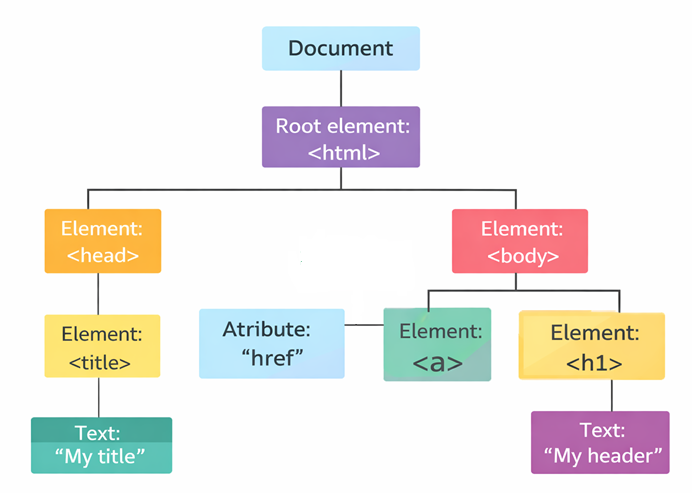
| Node | Description |
|---|---|
| Document | Owner of all nodes in the document |
<html> | Element Node |
<head> | Element Node |
<body> | Element Node |
<a> | Element Node |
href | Attribute Node |
<h1> | Element Node |
| My Header | Text Node |
HTML DOM API
The DOM API is a standard for how to get, change, add, or delete HTML DOM elements.
JavaScript is the language used in browsers to access the DOM through the API.
API Methods and Properties
Developers use global objects like document and window as entry points to any API.
If you want to access any element in an HTML page, you always start with accessing the document object. The document object represents your web page.
To manipulate HTML with JavaScript, you first need to select an element.
Below are some examples of how you can use the document object to access HTML:
| Method | Description |
|---|---|
document.getElementById(id) | Find an element by element id |
document.getElementsByTagName(name) | Find elements by tag name |
document.getElementsByClassName(name) | Find elements by class name |
document.querySelector(selector) | Find the first element that matches a CSS selector |
document.querySelectorAll(selector) | Find all elements that match a CSS selector |
*** HTML DOM - Changing HTML ***
The HTML DOM allows JavaScript to change both the text and the content of HTML elements.
The easiest way to modify the content is by using the innerHTML property:
document.getElementById(id).innerHTML = new HTMLExample:
<html><body>
<p id="p1">Hello World!</p>
<script>document.getElementById("p1").innerHTML = "New text!";</script>
</body></html>
*** HTML DOM - Changing an Attribute ***
To change the value of an HTML attribute, use this syntax:
document.getElementById(id).attribute = new valueExample:
<!DOCTYPE html><html><body>
<img id="myImage" src="smiley.gif">
<script>document.getElementById("myImage").src = "landscape.jpg";</script>
</body></html>
*** HTML DOM - Changing CSS ***
The HTML DOM allows JavaScript to change the style of HTML elements.
To change the style of an HTML element, use this syntax:
document.getElementById(id).style.property= new styleExample:
<!DOCTYPE html><html><body>
<h1 id="id1">My Heading 1</h1>
<button type="button"onclick="document.getElementById('id1').style.color = 'red'">Click Me!</button>
</body></html>